
Understand team access and missing controls
Check your workspace and role before assuming a feature is missing.
The numbers in these website screenshots identify controls and statuses, not a required click sequence. Example records and amounts are illustrative; mobile layouts may differ.
Workspace and role matter
Use the intended workspace before looking for records or actions. An owner, admin, dispatcher, and field staff member may have different access.
The current navigation limits Business profile, Integrations, and Plan & Billing to owner/admin roles. Platform administration controls are not ordinary customer features.
Team management
In Team, add the technician's contact record first. A technician record and a login invitation are separate: use the invitation controls only when that person should sign in, and choose the intended role. A queued invitation is not an accepted invitation.
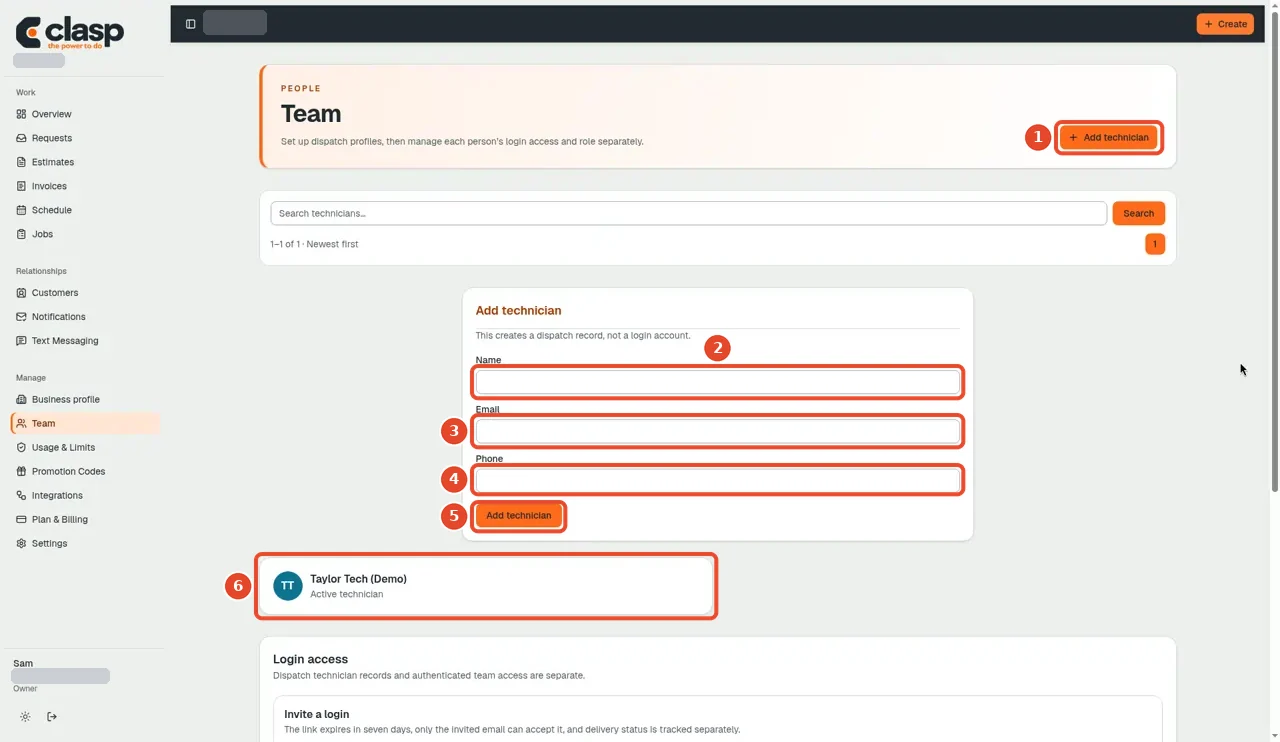
Numbered controls in this screenshot
- 1 — Add technician (header): Open the technician form.
- 2 — Name: Enter the team member's name.
- 3 — Email: Enter their correct contact email.
- 4 — Phone: Add the relevant phone contact.
- 5 — Add technician (save): Save the technician record after reviewing it.
- 6 — Active technician: This shows an active technician record; it does not by itself establish a login.
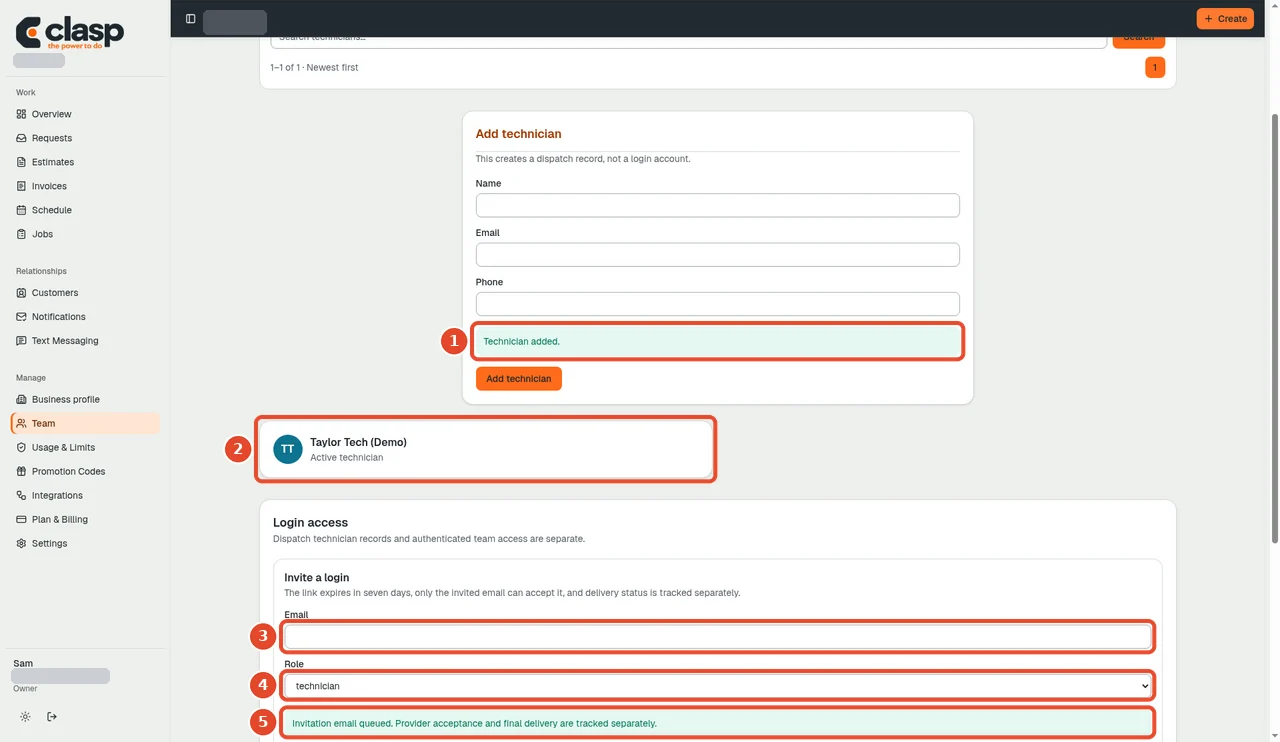
Numbered controls in this screenshot
- 1 — Technician added confirmation: Check that the technician record was saved.
- 2 — Active technician card: Confirm which technician the invitation is for.
- 3 — Invite a login: email: Enter the intended person's sign-in email.
- 4 — Role: Choose only the access role they should have.
- 5 — Invitation email queued: Queued means the invitation awaits delivery processing, not that the person has received or accepted it.
Mobile field staff
The mobile documentation describes server-filtered assigned records and restricted office actions. A staff member seeing fewer jobs is not by itself evidence that records were deleted.
If a control is missing, check the active workspace and role, then contact the workspace owner or Clasp support. Do not share accounts or bypass permission checks.
Full invitation delivery/acceptance, permission changes and owner transfer still require the planned role-based workflow testing.