
Find notifications and understand delivery status
Distinguish in-app activity, email, and mobile push.
The numbers in these website screenshots identify controls and statuses, not a required click sequence. Example records and amounts are illustrative; mobile layouts may differ.
Website notifications
The main navigation calls this area Notifications, and its current address is /notifications. Older saved links that used /communications are not a separate customer messaging inbox.
Look here for the recorded communication/activity states. Text conversations live under Text Messaging.
Email status
Queued, accepted, delivered, bounced, and failed describe different stages. An invoice saved as a draft has not necessarily been emailed. Delivered also does not prove the person read the message.
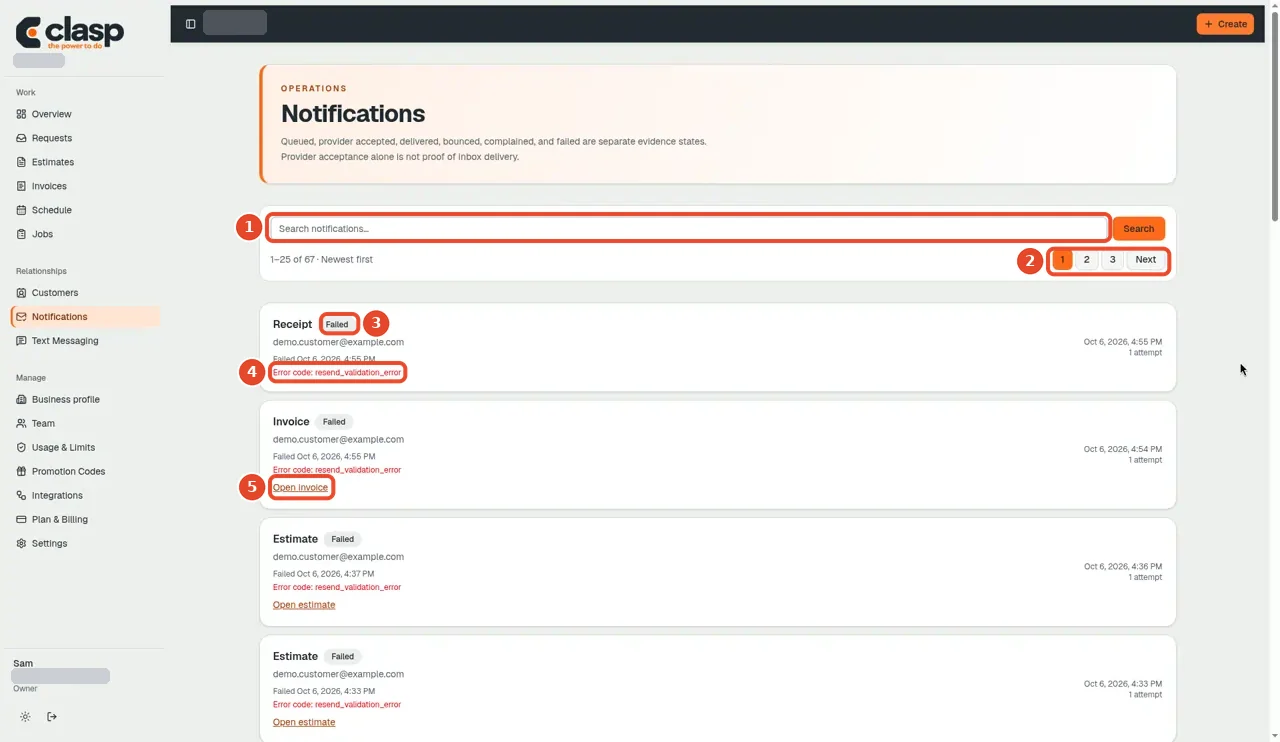
Numbered controls in this screenshot
- 1 — Search notifications: Find the notification for the intended document and approximate time.
- 2 — Pages: Move between pages when the record is not on the current page.
- 3 — Failed status: A failure here needs investigation; it is not delivery success.
- 4 — Error code: Use the displayed error to narrow the cause or report it privately to support.
- 5 — Open invoice: Review the related invoice before correcting or resending anything.
Phone notifications
Notification permission on a phone is only one requirement. The app, platform credentials, delivery service, and intended release also need to be configured.
The mobile project documentation distinguishes local visit reminders from remote push and records remote-device delivery as still needing proof. This help-center task did not test push or change phone settings.
Before publishing exact Android/iPhone steps, test the intended installed versions, permission prompts, foreground/background delivery, and notification taps.