
Welcome to Clasp Help
Practical guides for your business, from the first lead to the final invoice.
The numbers in these website screenshots identify controls and statuses, not a required click sequence. Example records and amounts are illustrative; mobile layouts may differ.
Find practical guides prepared from Clasp's application source, project records, and annotated screenshots. Each guide identifies its platform and current verification limits.
Find your next step
- Start or continue your no-card trial.
- Use Ask Clasp by text or voice.
- Connect Clasp to ChatGPT or another supported AI client.
- Set up your business profile.
- Publish your business website.
- Work with service requests.
- Prepare an estimate.
- Understand texting setup and status.
- Use Clasp on Android and iPhone.
- Import customers from a CSV.
- Connect Zapier or CompanyCam.
- Set up customer card payments.
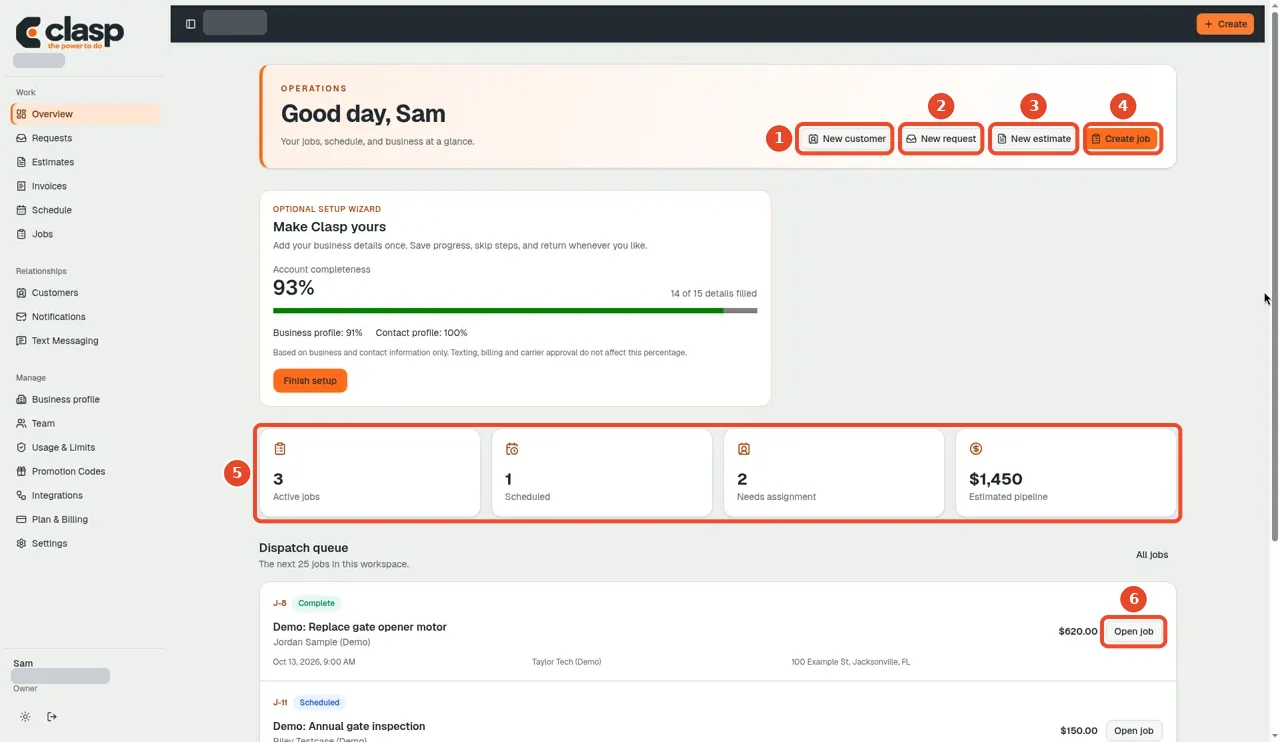
Numbered controls in this screenshot
- 1 — New customer: Start a new customer record after checking for duplicates.
- 2 — New request: Record a new service inquiry.
- 3 — New estimate: Begin a draft estimate; this does not send it.
- 4 — Create job: Create the work record for a job.
- 5 — Workspace stats: Review workspace totals; a count is not proof that a particular lead imported.
- 6 — Open job: Open an existing job to review its details.
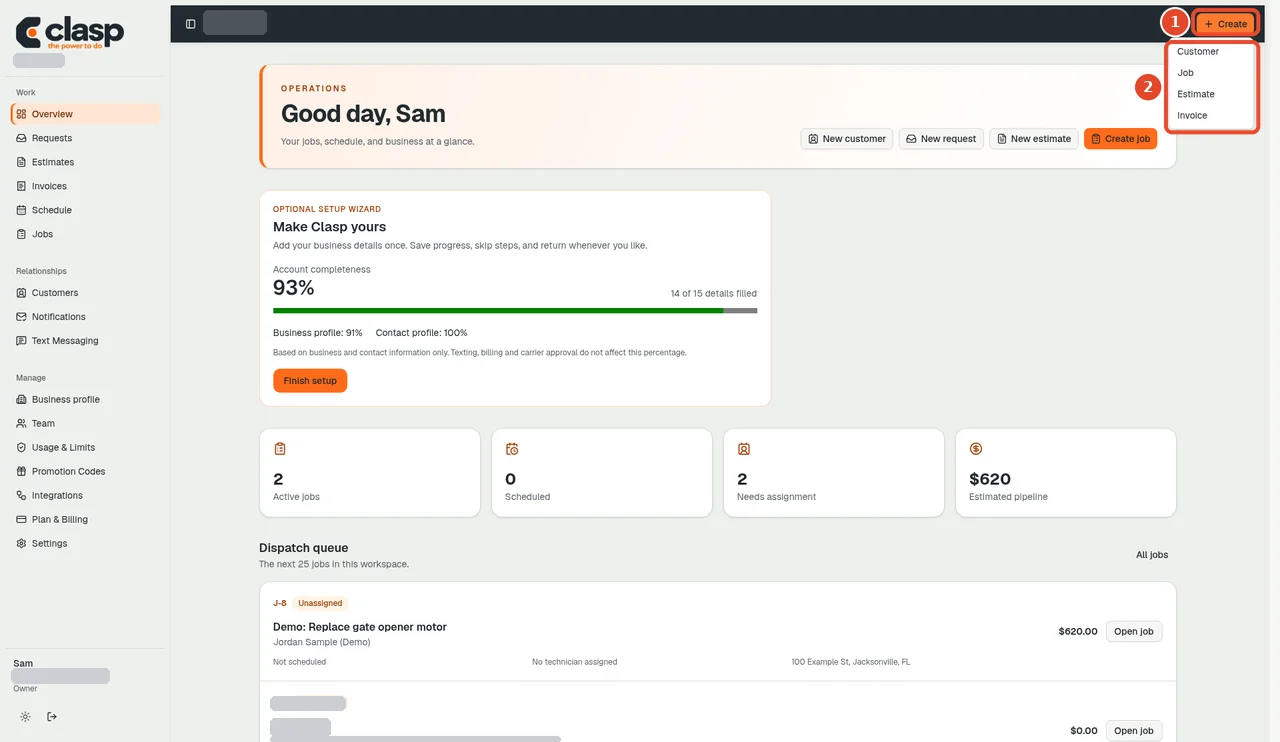
Numbered controls in this screenshot
-
1 — + Create: Open the quick-create menu.
-
2 — Choose Customer, Job, Estimate or Invoice: Choose the record type you need; these are alternatives, not a sequence.
Before you follow a guide
Check the platform label. Website screens and mobile screens can differ. Saving a draft does not necessarily send a message, publish a page, activate a service, or start a payment.
For account-specific help, use Clasp support. Do not include passwords, verification codes, payment details, or customer records in a support screenshot.