
Create and publish your business website
Prepare your home page, policies, and customer SMS opt-in page.
The numbers in these website screenshots identify controls and statuses, not a required click sequence. Example records and amounts are illustrative; mobile layouts may differ.
Prepare the pages
Open Business profile. The website editor contains pages for your business home, Privacy Policy, Terms, and SMS Opt-in.
-
Enter the public business information customers should see.
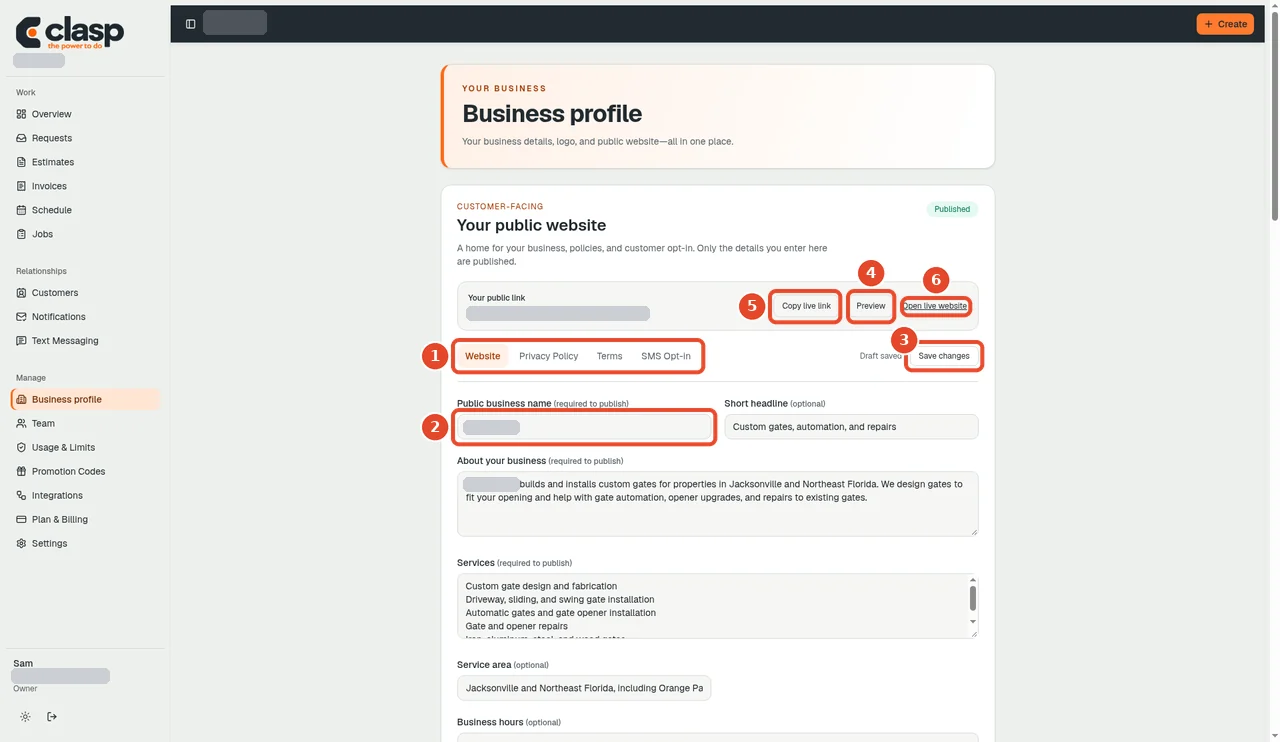
The website editor groups the public pages into tabs; enter the public details on the Website tab and save. Numbered controls in this screenshot
- 1 — Website / Privacy Policy / Terms / SMS Opt-in tabs: Choose the page you want to edit.
- 2 — Public name: Enter the customer-facing business name.
- 3 — Save changes: Save your edits; saving and publishing are separate.
- 4 — Preview: Review how the page will look before publication.
- 5 — Copy live link: Copy the published address when a live link is available.
- 6 — Open live website: Open the published version to check what customers can see.
-
Review the policy text or supplied external policy links.
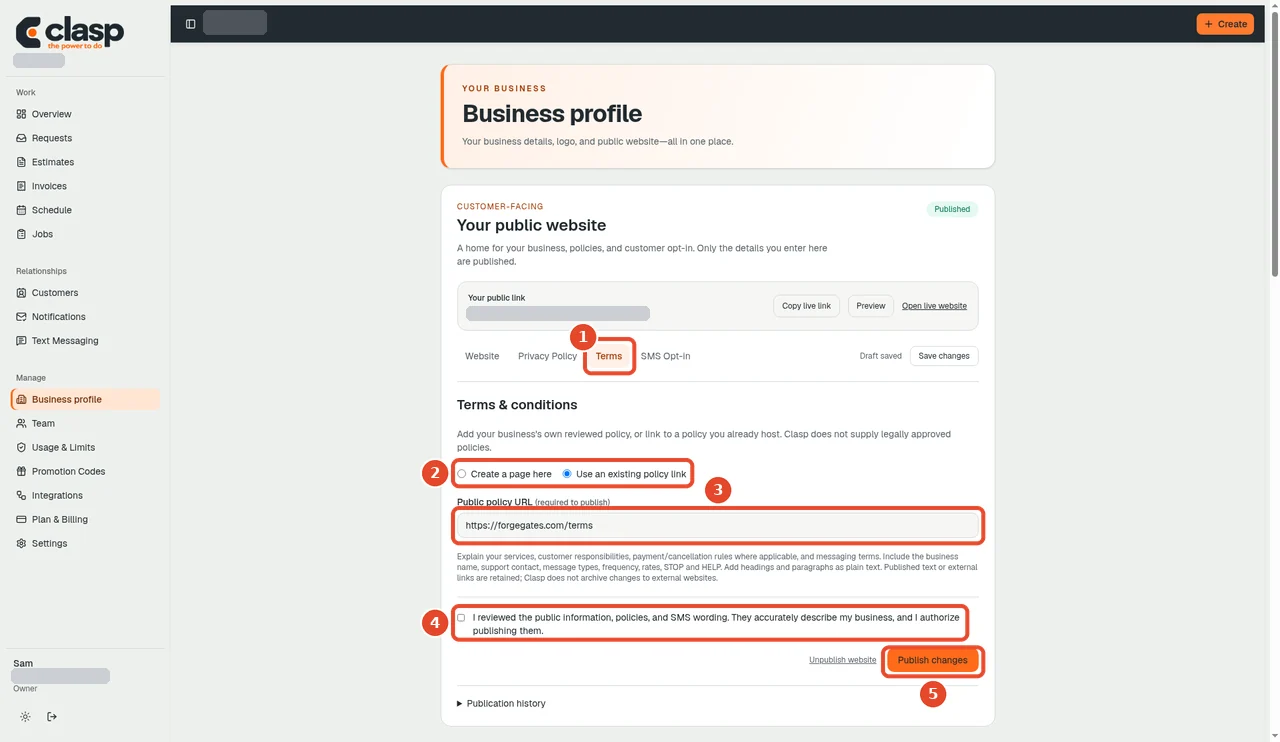
On each policy tab, choose whether Clasp hosts the page or you link to a policy you already publish. Numbered controls in this screenshot
- 1 — Terms tab: Open the Terms editor.
- 2 — Create a page here / Use an existing policy link: Choose either a hosted page or your existing policy link.
- 3 — Public policy URL: When using an external policy, enter its complete public HTTPS address.
- 4 — Review confirmation checkbox: Confirm review only after checking the actual policy and business facts.
- 5 — Publish changes: Publish when all intended changes are ready; publishing changes what visitors can see.
-
Describe the actual texting process if you offer SMS.
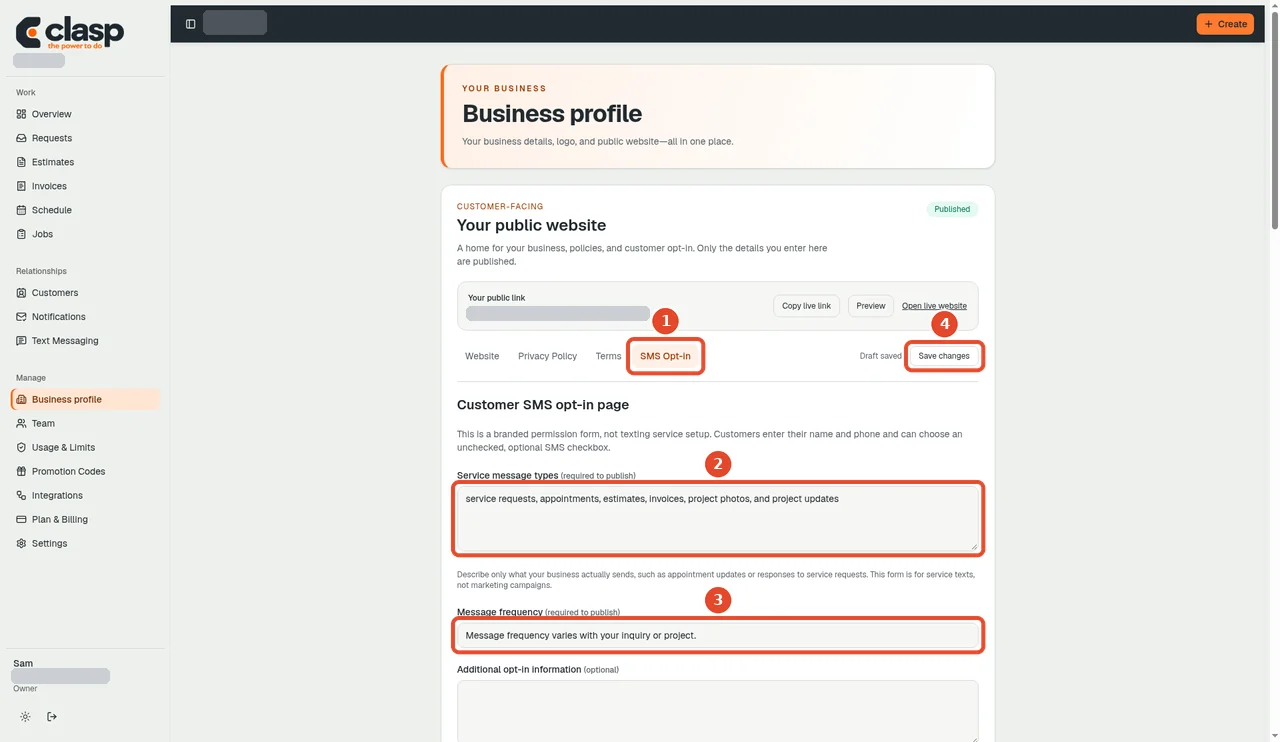
The SMS Opt-in tab describes which messages you send and how often. Numbered controls in this screenshot
- 1 — SMS Opt-in tab: Open the SMS Opt-in editor.
- 2 — Service message types: Describe the service texts this business actually sends.
- 3 — Message frequency: Describe the actual expected frequency, not a promise you cannot meet.
- 4 — Save changes: Save the wording, then preview and publish separately when ready.
-
Use Preview to review the pages.
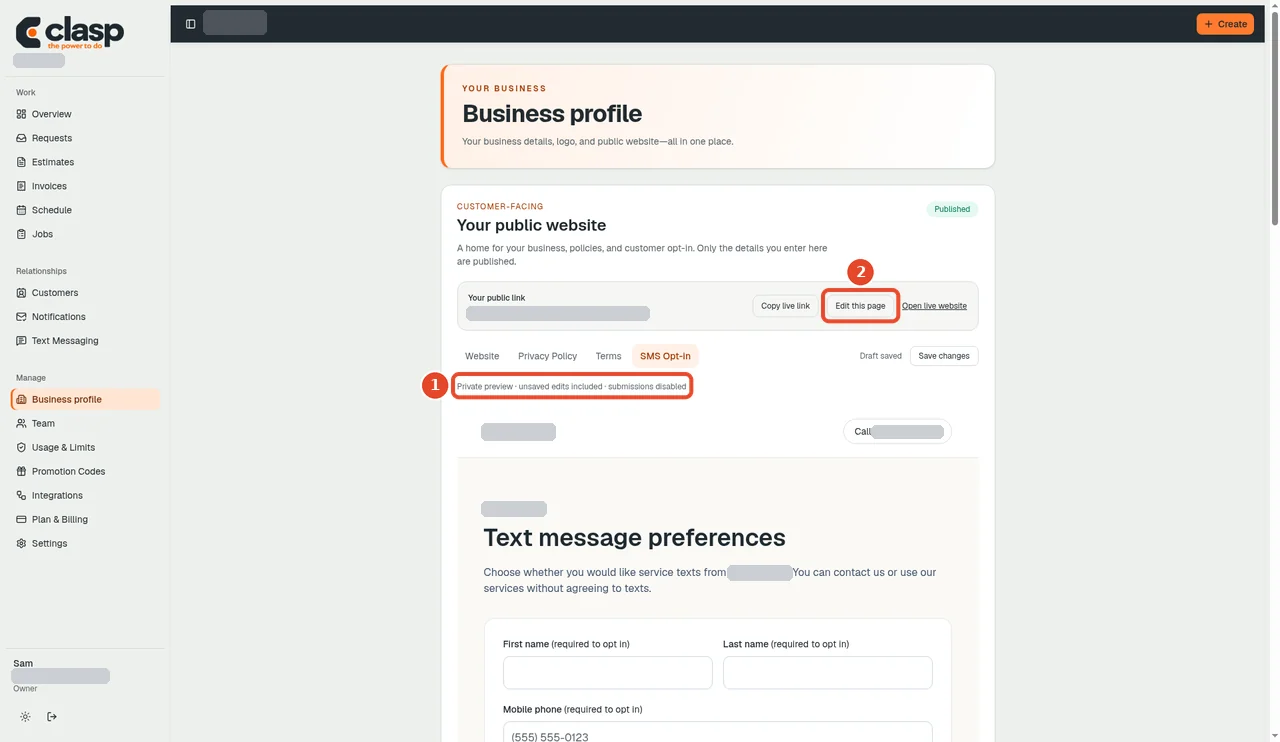
Preview shows a private draft of the site with a link back to the editor. Numbered controls in this screenshot
- 1 — Private preview notice: This is a private preview with unsaved edits included; form submissions are disabled here.
- 2 — Edit this page: Return to editing if anything needs to change. Previewing does not publish.
-
Save your changes, then use the separate publish action when the information is ready.
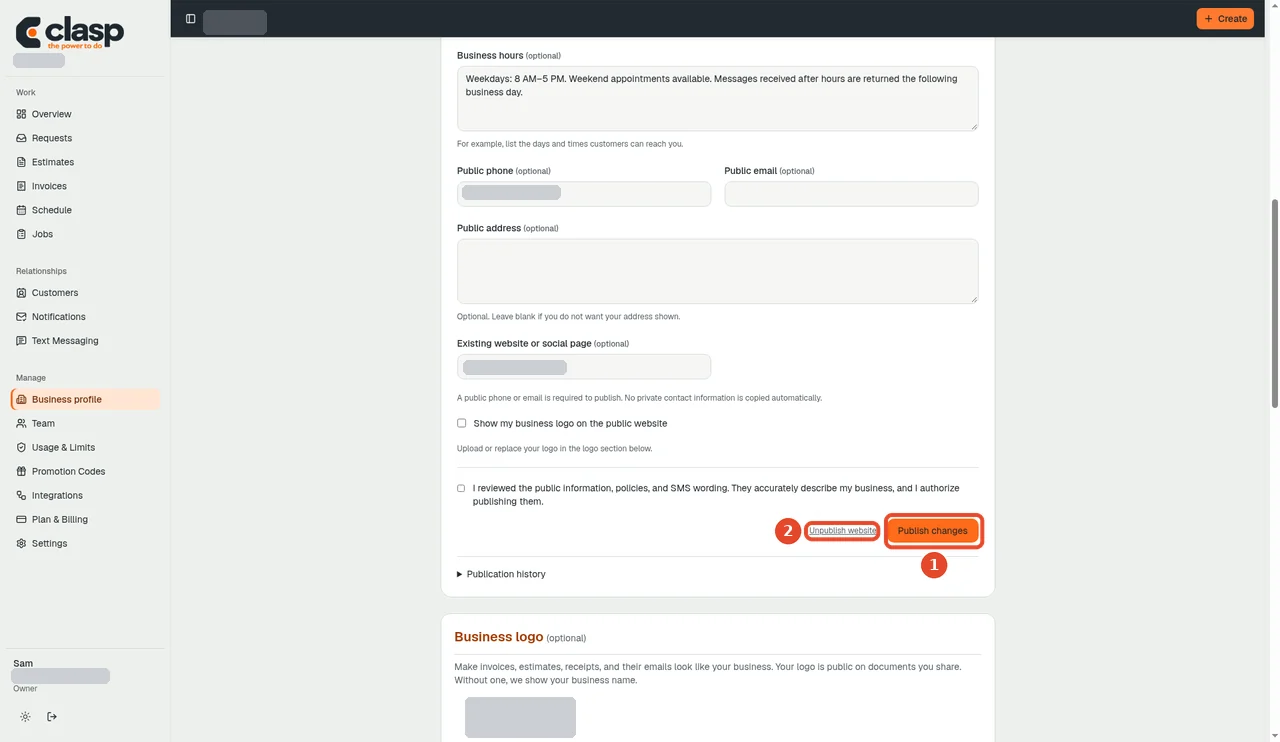
Publishing is a separate action from saving, and the site can be unpublished from the same place. Numbered controls in this screenshot
- 1 — Publish changes: Publish the reviewed changes when ready.
- 2 — Unpublish website: This is an alternative action that removes public availability; do not click it as the next publication step.
Only publish business facts, contact details, and policy wording you have approved.
Draft address versus live link
A reserved address is not a published website. A draft URL may return a not-found page until you publish. Use the editor preview while preparing the site.
After publication, the editor exposes Copy live link. Check the published version after making changes; saved work and published work are distinct states.
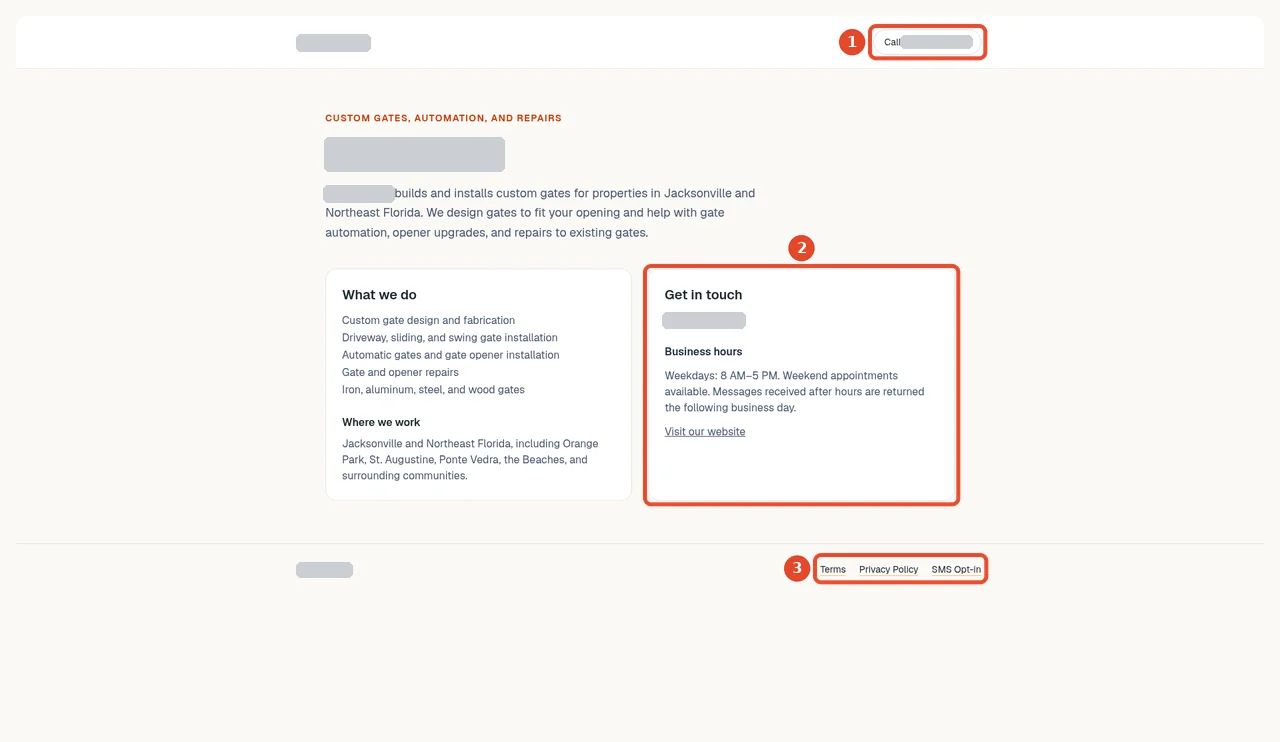
Numbered controls in this screenshot
- 1 — Call button: Customers can use the published business phone contact.
- 2 — Get in touch: Customers can open the contact action shown on the site.
- 3 — Terms / Privacy Policy / SMS Opt-in links: Open each footer page and confirm the intended policy or opt-in page appears.
Policy editing
Open the policy tab to edit its content directly. If you choose an existing policy link instead of a hosted policy, the published page presents a link to the full external policy, as these Privacy Policy and Terms examples show.
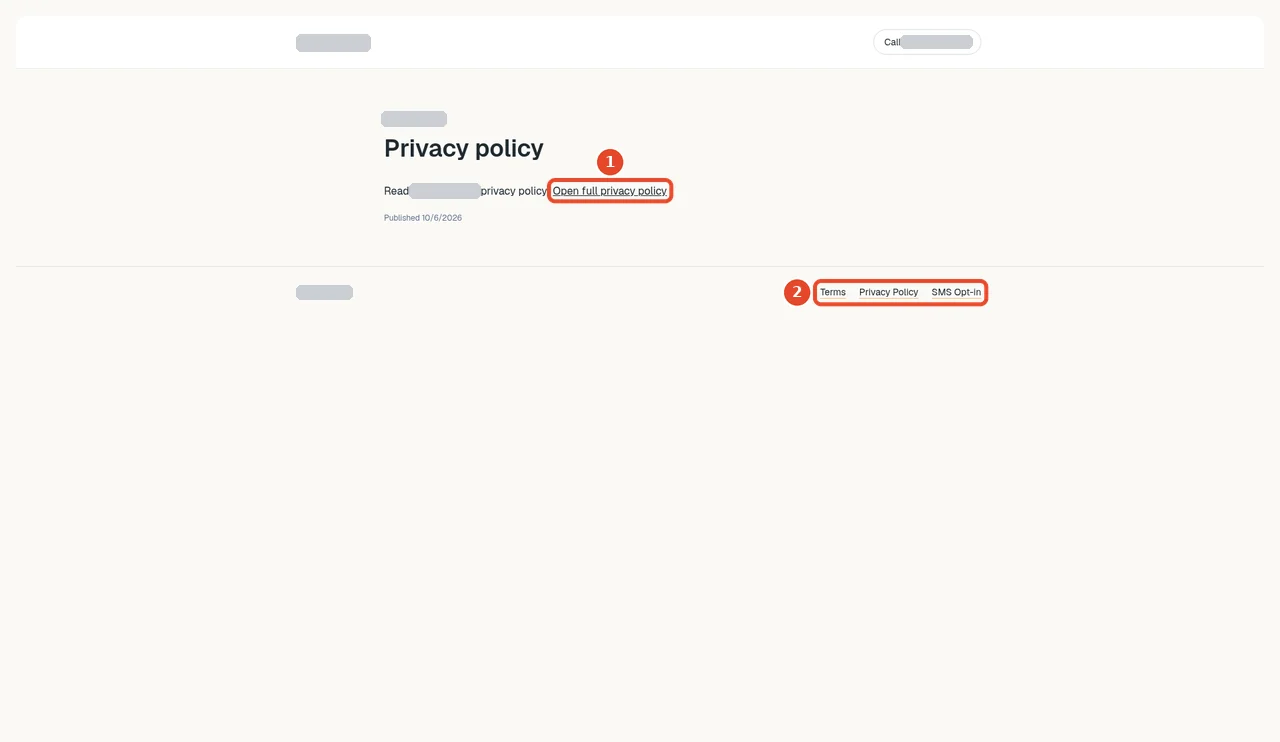
Numbered controls in this screenshot
- 1 — Open full privacy policy: This example uses an existing external policy; open the full policy from this link.
- 2 — Footer policy links: Use the footer to switch between the site's policy and SMS opt-in pages.
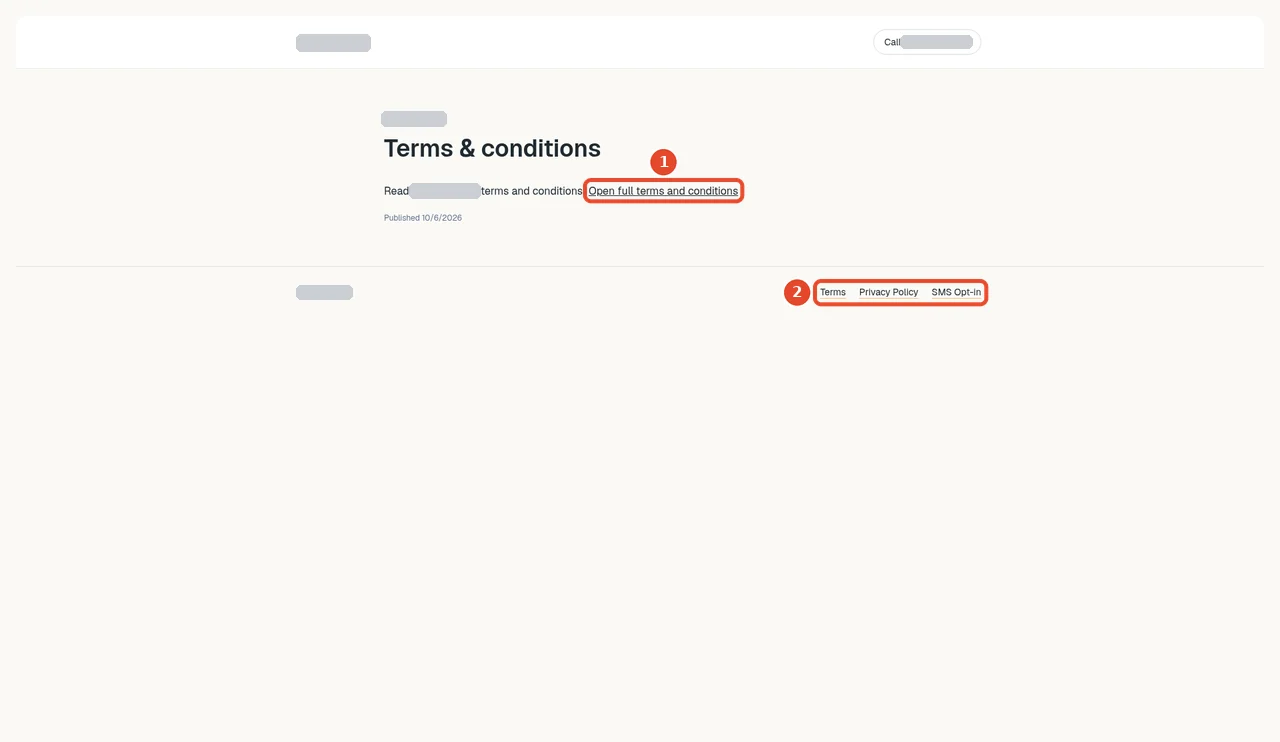
Numbered controls in this screenshot
- 1 — Open full terms and conditions: This external-link example opens the full terms at the business's configured policy address.
- 2 — Footer policy links: Use the footer to switch between policy and opt-in pages.
Texting is still separate
Publishing an opt-in page does not approve your number or grant permission to text existing leads. See customer permission.