
Understand customer permission to text
Keep lead information, consent, and message delivery separate.
The numbers in these website screenshots identify controls and statuses, not a required click sequence. Example records and amounts are illustrative; mobile layouts may differ.
A lead is not a consent record
Clasp's current source separates imported leads from permission to text a recipient. Selecting Home Depot / Pro Referral or supplying a terms link does not by itself record that permission.
Digital permission
The business website editor can publish a branded SMS opt-in page with an unchecked customer choice. The person must actually complete the applicable consent process. Publishing the page alone does not opt in existing customers.
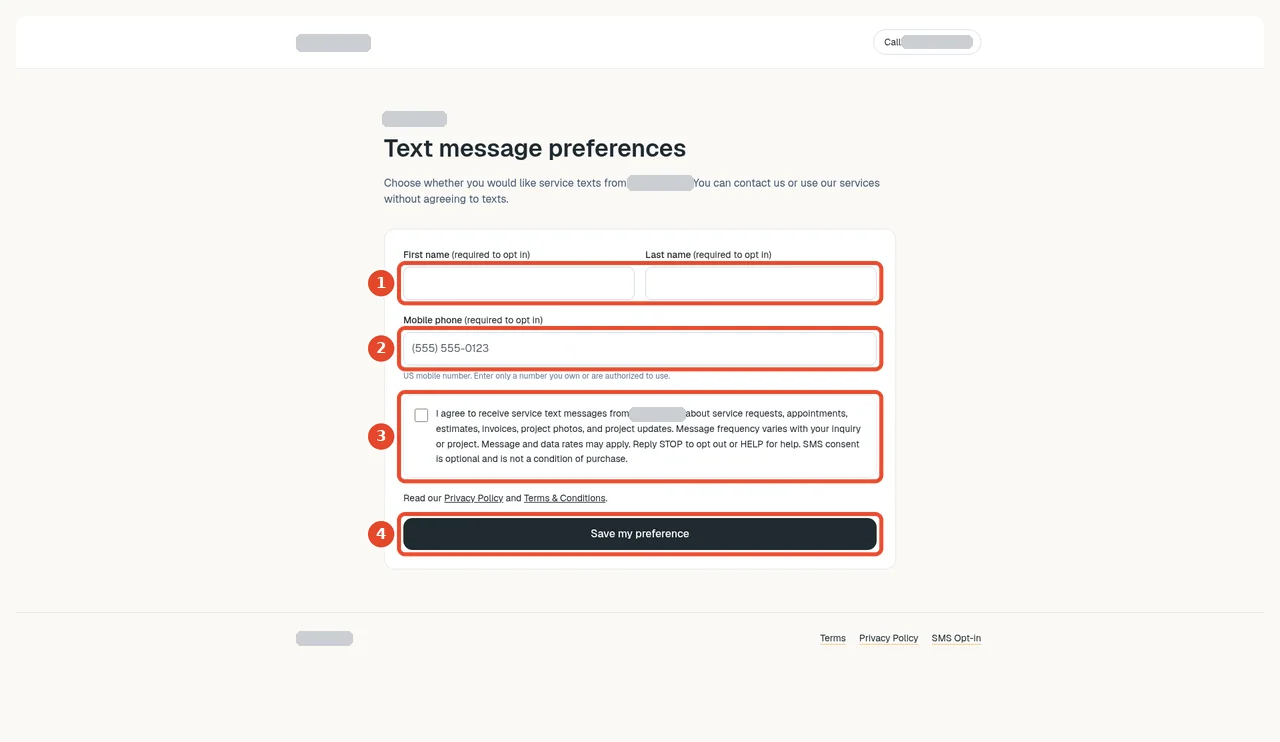
Numbered controls in this screenshot
- 1 — First and last name: The customer enters their name.
- 2 — Mobile phone: They enter their own mobile number.
- 3 — Optional SMS consent checkbox: They make their own choice after reading the business's SMS disclosure; do not preselect consent.
- 4 — Save my preference: The customer saves the preference. A published form alone does not consent on their behalf.
Business facts, policy links, and the description of the SMS use must match the real process.
Conversations and automatic replies
Clasp's sending path checks sender readiness and recipient consent. Automatic lead replies have additional workspace enablement and duplicate-handling controls. Do not assume every new lead receives a text.
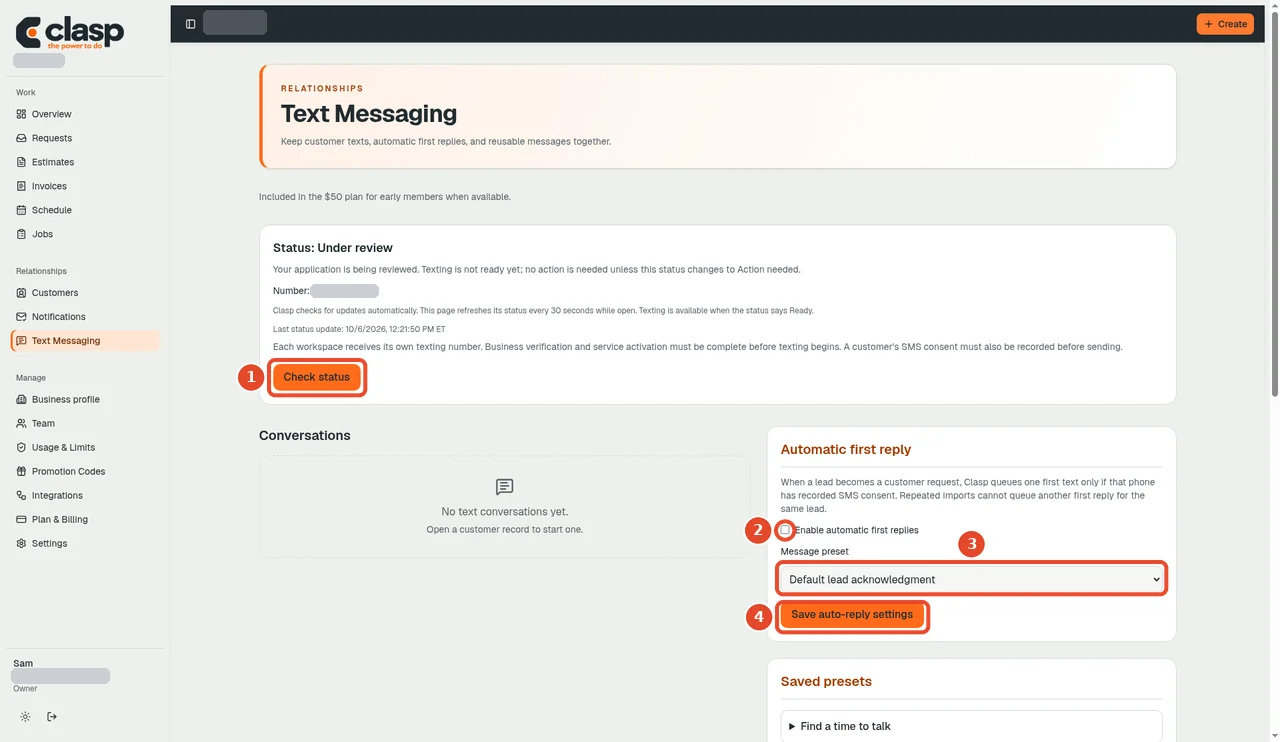
Numbered controls in this screenshot
- 1 — Check status: Check sender readiness before considering automatic replies.
- 2 — Enable automatic first replies: Enable only if your business intends automatic first replies and the applicable customer-consent requirements are met.
- 3 — Message preset: Choose and review the intended reply wording.
- 4 — Save auto-reply settings: Save the settings. This does not grant permission to text every imported lead.
A saved SMS draft is not a sent message. Provider acceptance and final delivery remain different states.
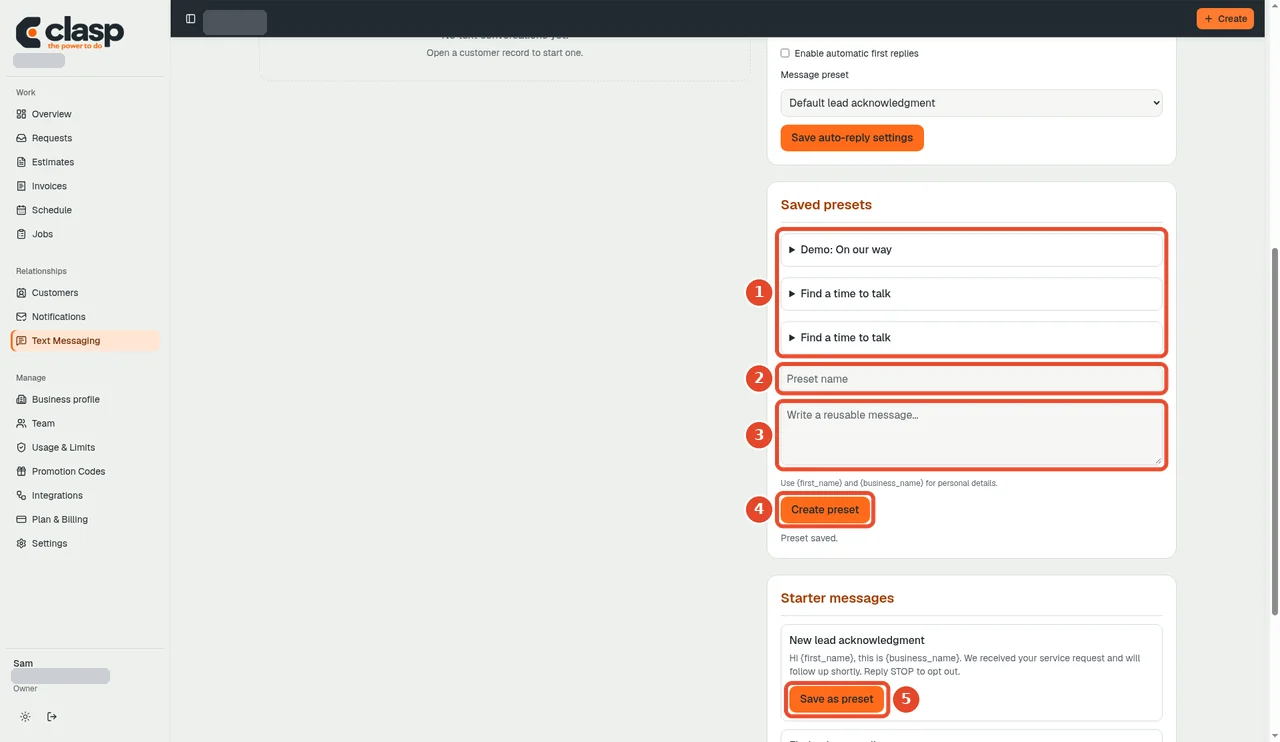
Numbered controls in this screenshot
- 1 — Saved presets: Review existing message templates.
- 2 — Preset name: Give the new template a recognizable name.
- 3 — Message: Write the actual service-message wording.
- 4 — Create preset: Save the template; this is not a send action.
- 5 — Save as preset (starter message): Use this alternative to save the displayed starter wording as a template after reviewing it.
Opting out
Honor recorded opt-outs. A staff note or a new lead import must not be used to override STOP. The current source preserves opt-out controls.
This draft describes application boundaries, not legal advice or a promise of carrier approval. Provider-specific instructions will be rechecked before publication.