
Work with service requests
Understand incoming leads and their next steps.
The numbers in these website screenshots identify controls and statuses, not a required click sequence. Example records and amounts are illustrative; mobile layouts may differ.
Requests are the starting point
Open Requests to review service inquiries. A request is not automatically an approved estimate, booked visit, or completed job.
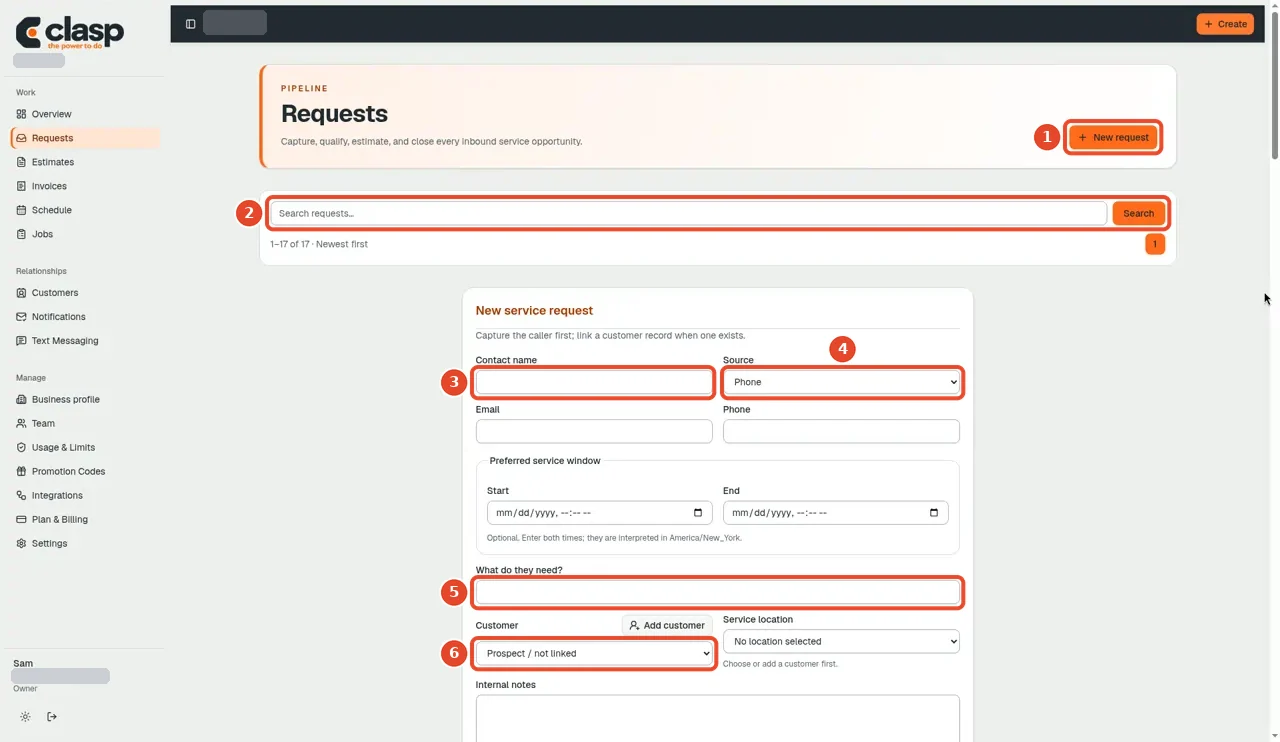
Numbered controls in this screenshot
- 1 — New request: Create a request when it is not already present.
- 2 — Search requests: Search for an existing inquiry before creating another.
- 3 — Contact name: Confirm who made the inquiry.
- 4 — Source: Check where it originated.
- 5 — What do they need?: Read the requested work.
- 6 — Customer: Check the linked customer, if one is present.
The source contains actions to create and edit requests, qualify them, close them, mark spam, and reopen them. Available actions depend on your role and the current record state.
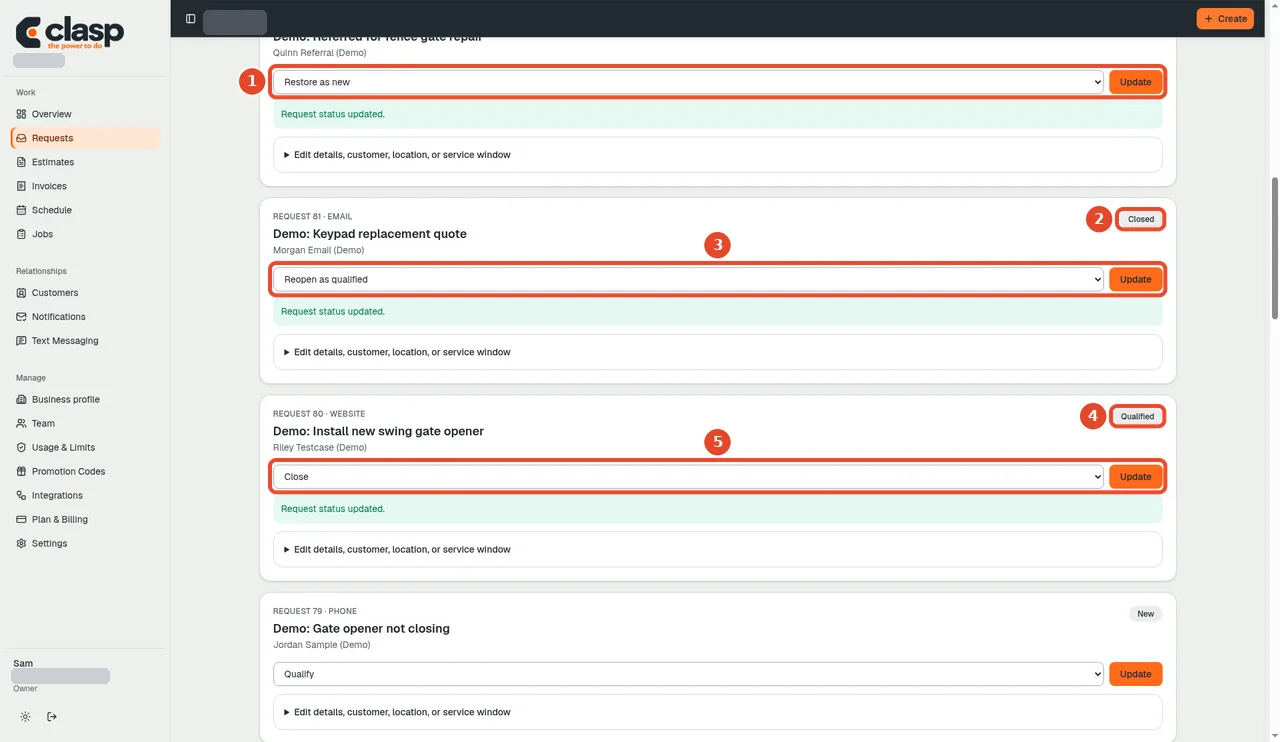
Numbered controls in this screenshot
- 1 — Restore as new (spam request): Restore a request marked spam only when that classification was wrong.
- 2 — Closed status: This label is the current closed state, not an action.
- 3 — Reopen as qualified: Reopen a closed request when work should resume.
- 4 — Qualified status: This label shows the request is qualified.
- 5 — Close: Close a qualified request only when that is the intended outcome. The pictured actions belong to different records.
Review before acting
-
Check the customer and requested service.
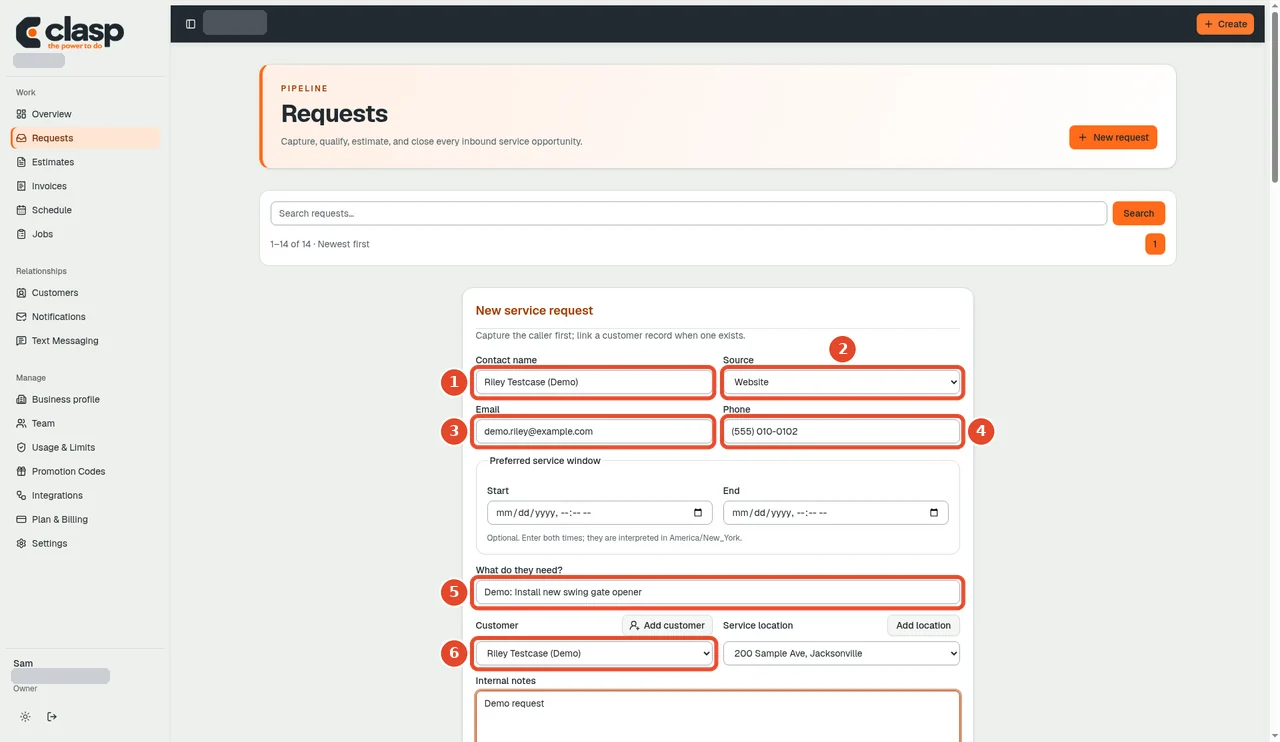
Check who the request is from and what work they need before acting on it. Numbered controls in this screenshot
- 1 — Contact name: Confirm the contact name.
- 2 — Source: Review the recorded lead source.
- 3 — Email: Check the email before using email-related actions.
- 4 — Phone: Check the phone, including whether it is a marketplace relay.
- 5 — What do they need?: Read the service request before deciding the next step.
- 6 — Customer: Check that the linked customer is the correct person or business.
-
Review source details and any linked property.
-
Correct or resolve ambiguous information before linking records.
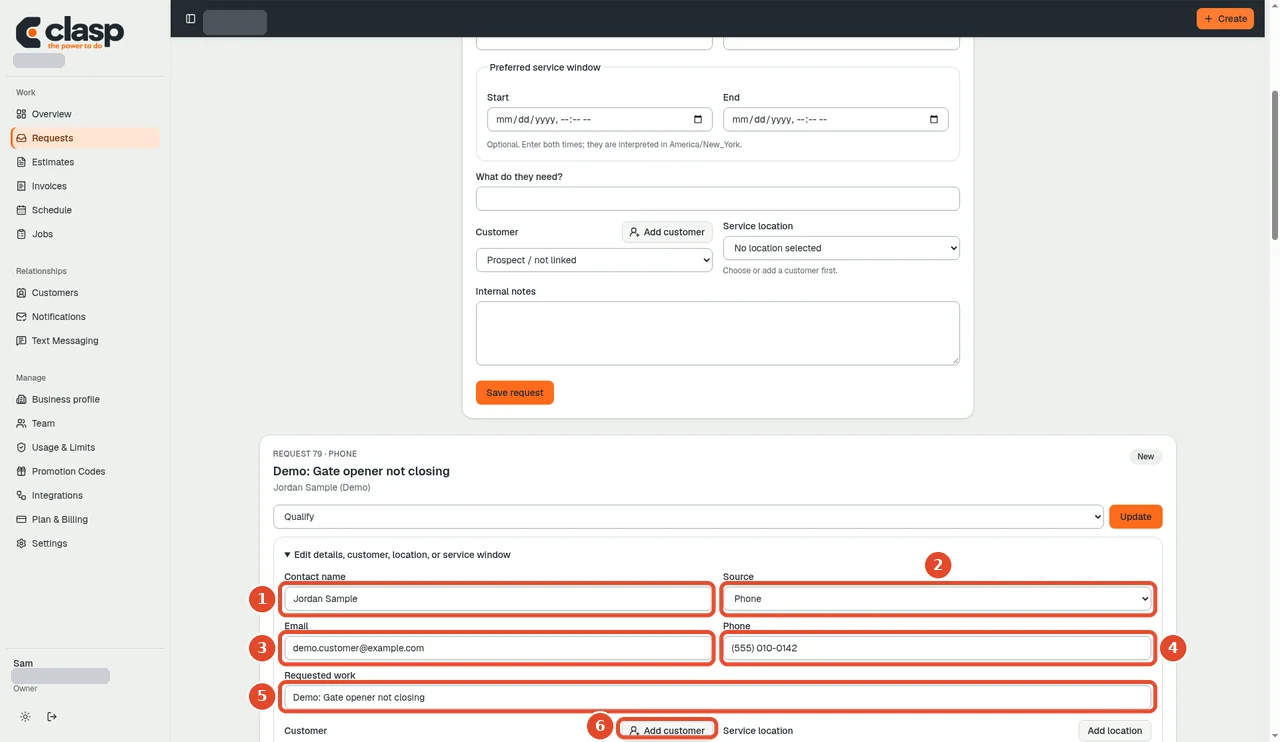
Use Edit details to correct a request before you link it to a customer. Numbered controls in this screenshot
- 1 — Contact name: Correct the contact name if needed.
- 2 — Source: Keep the source accurate.
- 3 — Email: Correct the email only with reliable information.
- 4 — Phone: Correct the phone only with reliable information.
- 5 — Requested work: Clarify the actual scope of the inquiry.
- 6 — Add customer: Create a customer only if the intended record does not already exist; then review and save the request.
-
Choose the next appropriate action for that request.
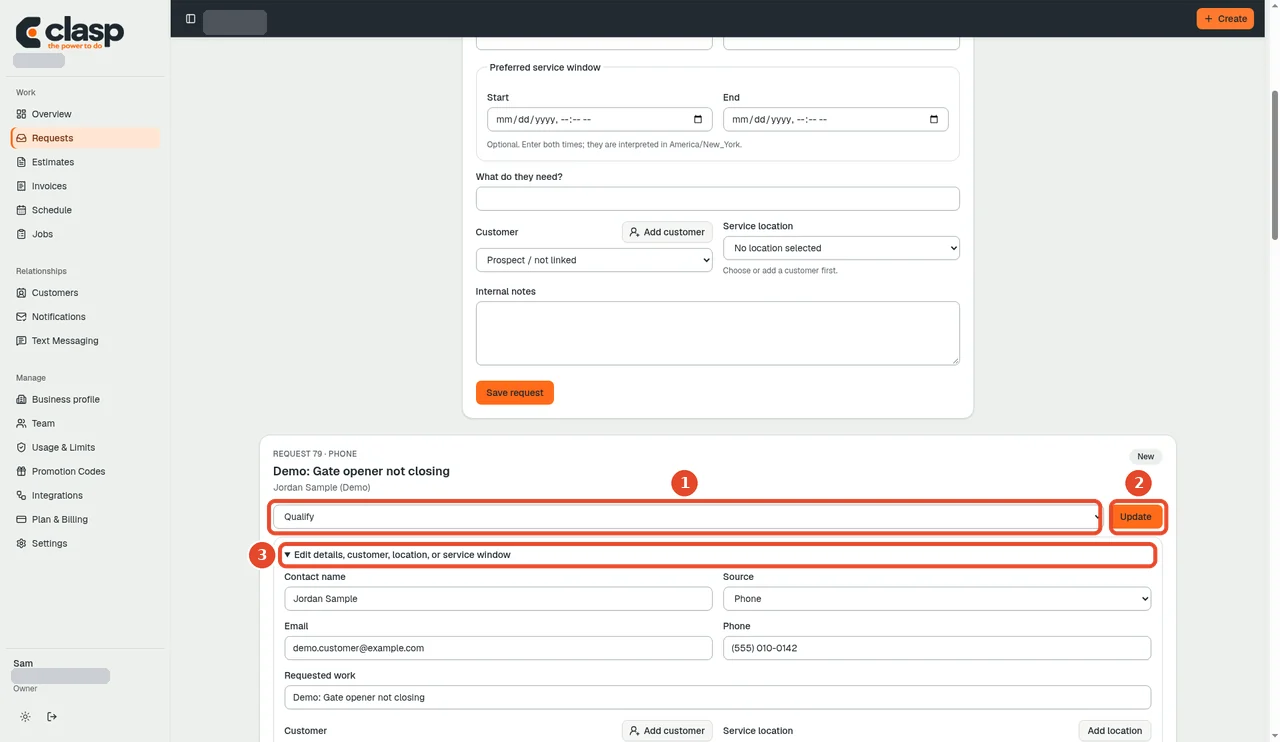
Pick the next status for the request, then choose Update to apply it. Numbered controls in this screenshot
- 1 — Choose status (Qualify / Close / Mark spam): Choose the intended state: qualify, close, or mark spam. Do not cycle through every option.
- 2 — Update: Apply the chosen status and check the result.
- 3 — Edit details: Use this separate action to correct request information.
A lead source may provide a temporary relay phone number. Do not assume it is a permanent customer number or use it to merge unrelated people.
If a lead is missing
Check the relevant integration's import status before creating duplicates. Lead troubleshooting distinguishes connection, receipt, and import problems.
Exact qualification-to-estimate and qualification-to-job steps remain part of the later workflow test.