
Connect Home Depot / Pro Referral leads
Understand Clasp's browser-assisted lead connection.
The numbers in these website screenshots identify controls and statuses, not a required click sequence. Example records and amounts are illustrative; mobile layouts may differ.
Where to start
Open Integrations, then Home Depot / Pro Referral. The documented setup uses an authorized browser connection; it is not an official Home Depot API integration claim.
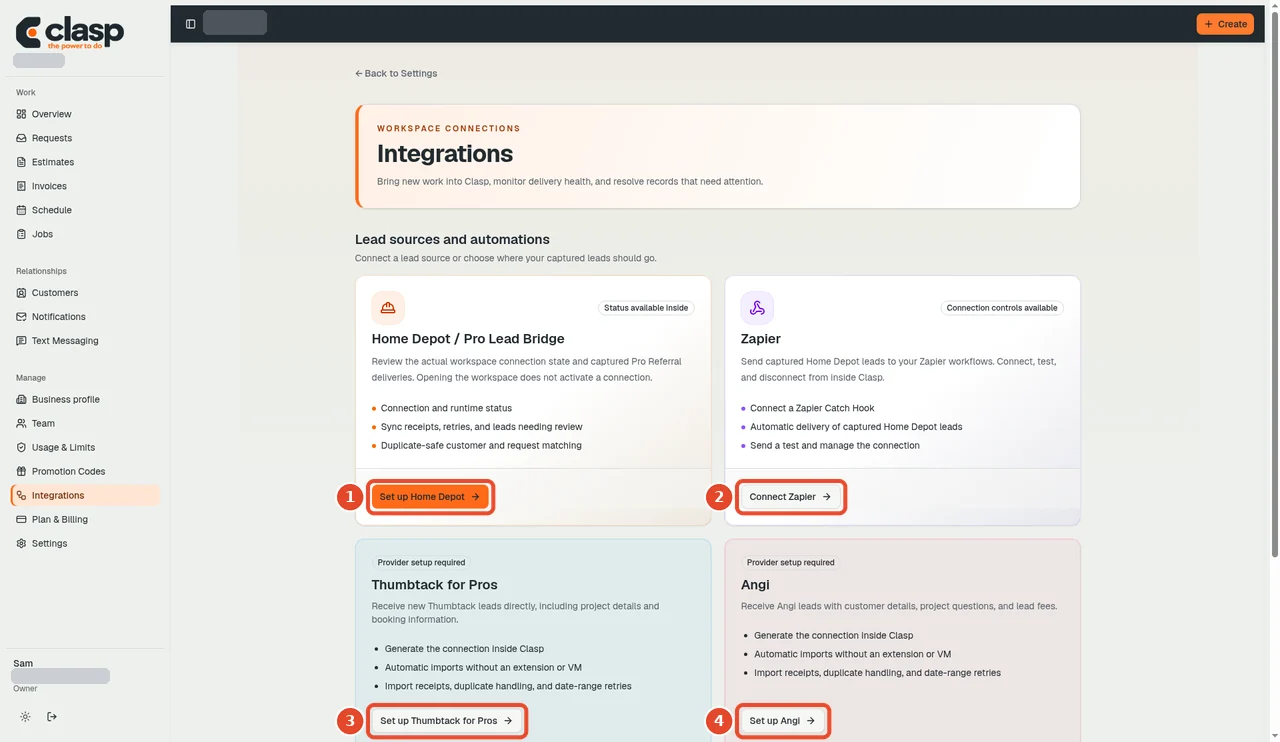
Numbered controls in this screenshot
- 1 — Set up Home Depot: Open the Home Depot / Pro Referral setup.
- 2 — Connect Zapier: This optional integration forwards captured leads outward; it is not required for every Home Depot connection.
- 3 — Set up Thumbtack for Pros: This opens a different provider's setup.
- 4 — Set up Angi: This opens a different provider's setup; do not configure unrelated sources as part of Home Depot setup.
Use your own authorized Pro Referral account and follow the connection instructions shown for your workspace. Keep passwords and verification codes inside the trusted sign-in flow.
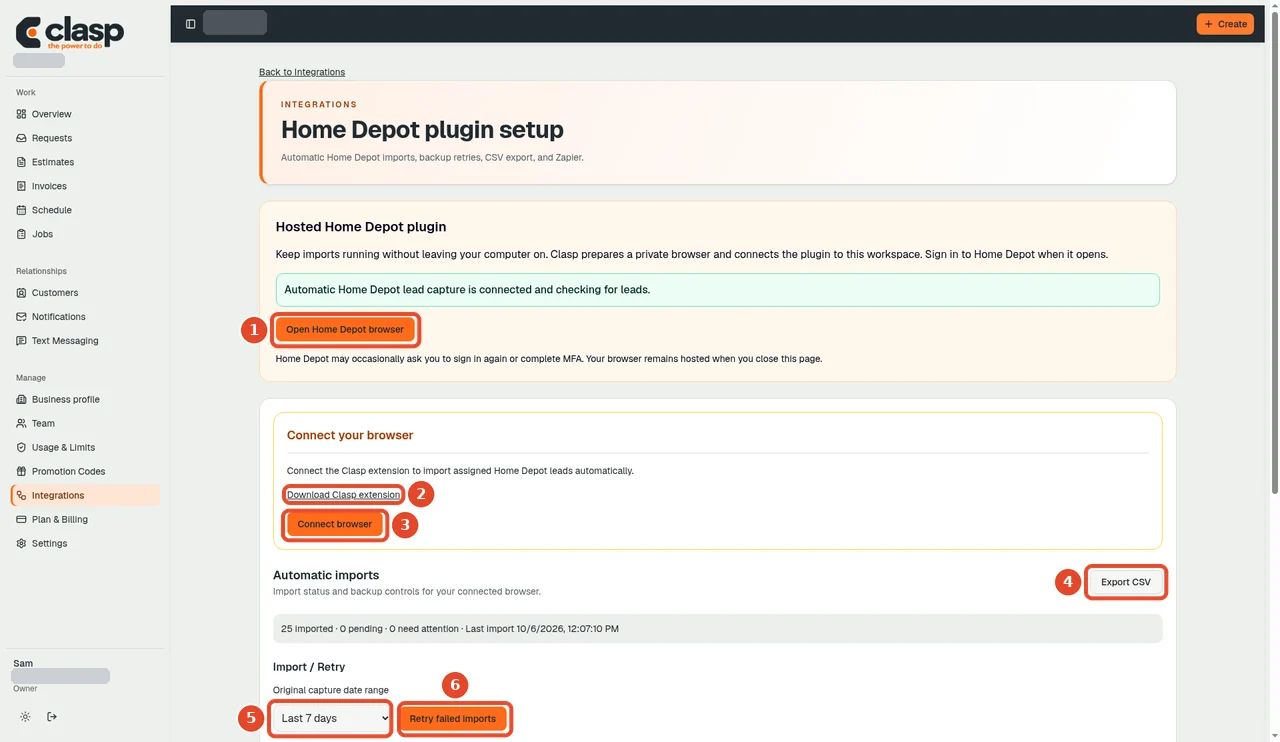
Numbered controls in this screenshot
- 1 — Open Home Depot browser: Open the browser connection and sign in through the authorized provider flow.
- 2 — Download Clasp extension: Use the extension download only if the setup instructions for your connection require it.
- 3 — Connect browser: Follow the displayed connection instructions for your workspace.
- 4 — Export CSV: Export the available records if needed; this is not a connection step.
- 5 — Capture date range: Choose only the date range you intend to capture.
- 6 — Retry failed imports: Retry saved failed imports only after reviewing their status and cause.
Connection is not import proof
A signed-in browser, connected extension, received event, and visible request are separate stages. After setup, review import receipts and the Requests list to understand what reached Clasp.
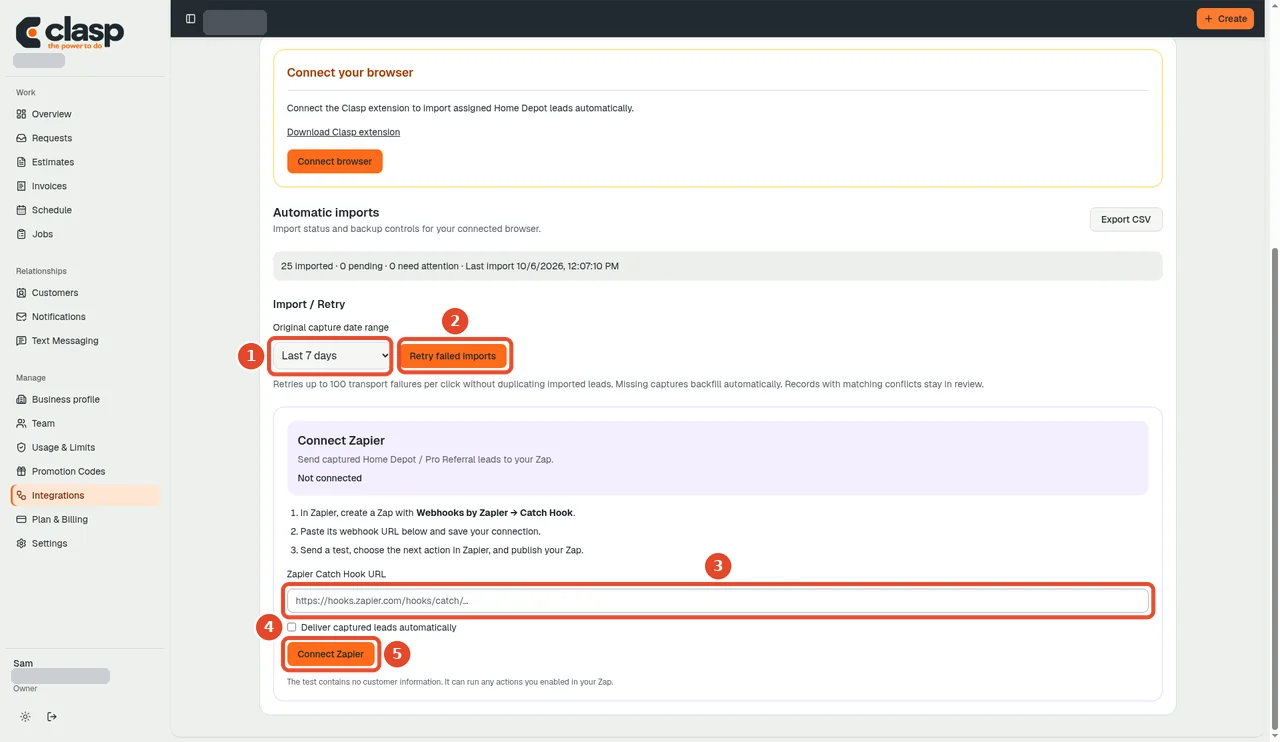
Numbered controls in this screenshot
- 1 — Capture date range: Set the range for the intended capture or review.
- 2 — Retry failed imports: Retry eligible saved failures; this cannot recreate a lead that never arrived.
- 3 — Zapier Catch Hook URL: Enter a hook only if you intend to forward leads to your own authorized Zapier workflow.
- 4 — Deliver captured leads automatically (checkbox): Enable only when that automatic forwarding is intended.
- 5 — Connect Zapier: Save that optional Zapier connection; it is distinct from Home Depot authentication.
Some provider sessions require renewed sign-in. Do not assume a connection stays healthy indefinitely without checking its status.
Missing leads
Use lead troubleshooting before recreating a record. The current browser-hosting and reconnect steps will be captured during testing; this draft does not promise a specific refresh interval or guaranteed unattended delivery.
Imported contact details do not by themselves establish SMS permission.