
Print an estimate or invoice, or save a PDF
Use the saved document rather than an editing screen.
The numbers in these website screenshots identify controls and statuses, not a required click sequence. Example records and amounts are illustrative; mobile layouts may differ.
Estimates
-
Finish editing the estimate.
-
Choose Save estimate.
-
Open the saved estimate document.
-
Choose Print or save PDF.
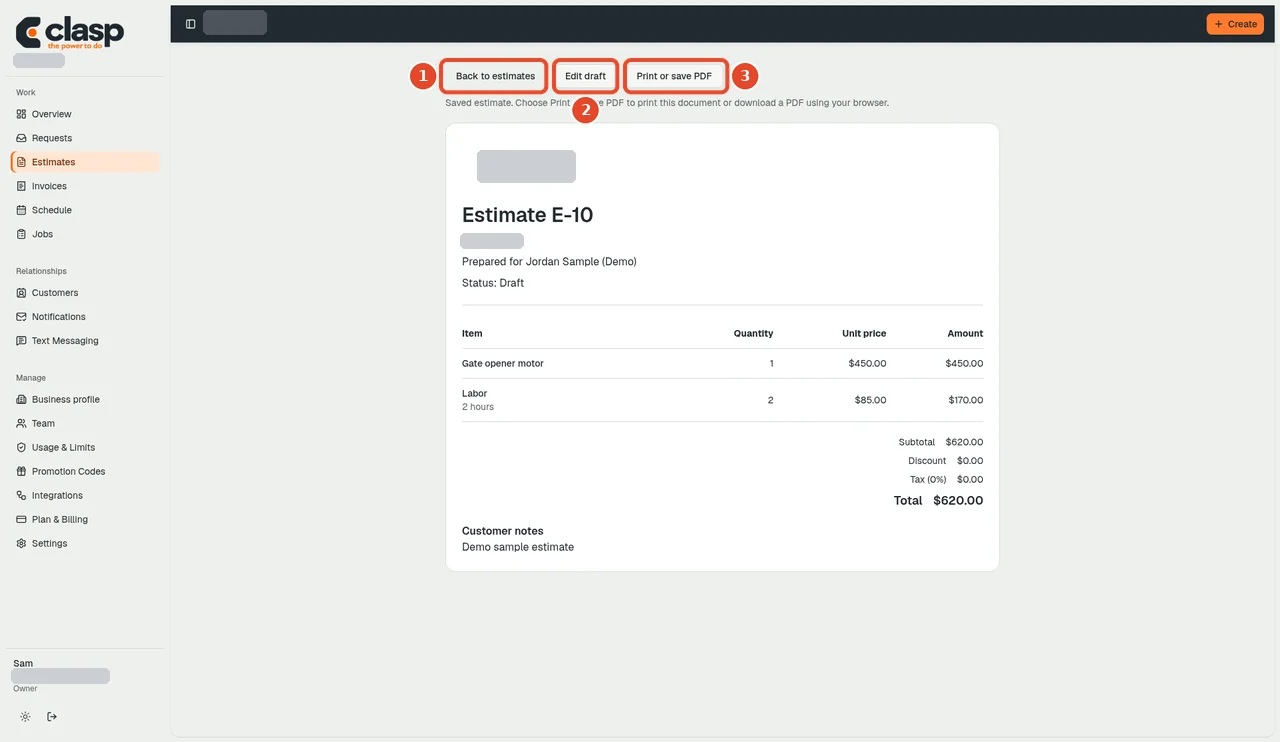
Print from the saved estimate document, not from the edit form. Numbered controls in this screenshot
- 1 — Back: Return to the previous screen if needed.
- 2 — Edit draft: Edit only if the draft needs changes; save before printing again.
- 3 — Print or save PDF: Open the browser print dialog, then choose a printer or Save as PDF.
-
Select your printer or the browser's PDF destination.
The estimate document has its own route, separate from the edit form.
Invoices
Open the intended saved invoice and use its print control. Review the customer, business branding, line items, totals, and notes in the print preview before saving or printing.
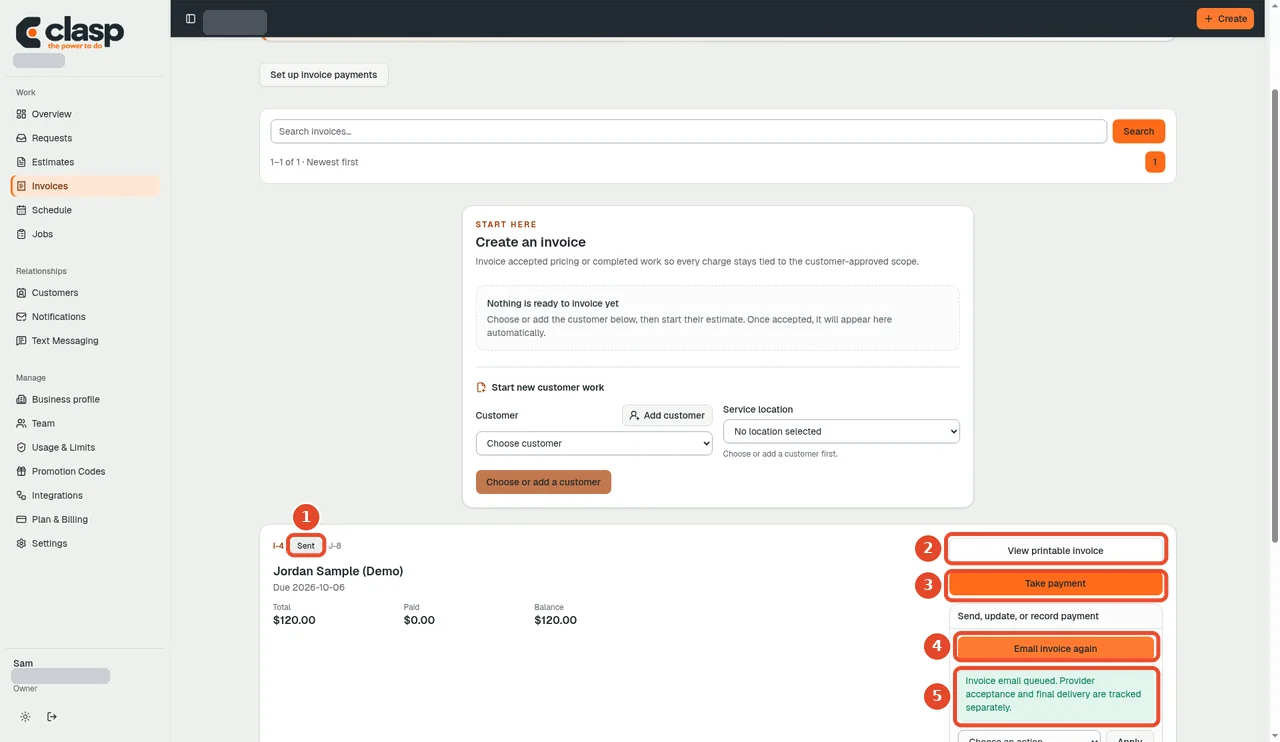
Numbered controls in this screenshot
- 1 — Sent status: Review the invoice state; printing does not change it.
- 2 — View printable invoice: Use this entry point to open the printable document.
- 3 — Take payment: This payment action is unrelated to printing.
- 4 — Email invoice again: This resend action is unrelated to printing.
- 5 — Invoice email queued: This email queue message is not a print or PDF confirmation.
The invoice screenshot shows the entry point to the printable document, not the browser print dialog or a finished PDF.
If editing controls appear
Do not send that output to the customer. Return to the saved document view and try its print action rather than printing an unsaved editing form.
Print-dialog names vary by browser and operating system. The PDF layout, page breaks, logo placement, and absence of editing controls are explicitly reserved for the later end-to-end review.